Showing posts with label mikrotik. Show all posts

Sunday, September 30, 2018

DUMP MTCNA EXAM Q&A

1. For static routing functionality, additionally to the RouterOS system package, you will also need the following software package:
        A.None
        B.DHCP
        C.Routing
        D.Advance-Tools

2.  From which of the following locations can you obtain Winbox?
        A.Router’s webpage
        B.Files menu in your router
        C.Via the console cable
        D.mikrotik.com


Friday, July 20, 2018

Hardening Mikrotik

Change port telnet,ssh and winbox
disable service not use


bandwith server disable
/tool bandwidth-server set enabled=no
 
 
dns cache disable
ip dns set allow-remote-requests=no
 
proxy disable
/ip proxy set enabled=no
 
sock disable
/ip socks set enabled=no
 
upnp disable
/ip upnp set enabled=no
 
 
check traffic flow wtih torch
 
via CLI : 
tool torch sfp1 port=any ip-protocol=any
 
or 
Via Winbox

Monday, July 9, 2018

Transparant Proxy on Mikrotik

From Winbox :


From CLI :

# Ini untuk enable proxy kita set di port 8080
/ip proxy set enabled=yes port=8080

 # Ini kita set setiap ada traffic dari interface LAN akan di redirect ke proxy dengan port 8080
/ip firewall nat add action=redirect chain=dstnat dst-port=80,8080,3128 in-interface=ether4-LAN protocol=tcp to-ports=8080

###> Keterangan :
in-interface=ether4-LAN >>>>> ini inteface yang ke pasang ke LAN user


# Ini kita gunakan untuk alasan security jadi kita block dari interface Internet/WAN untuk menggunakan Mikrotik kita sebagai Proxy Public
/ip firewall filter add action=drop chain=input dst-port=8080 in-interface=eth1-WAN protocol=tcp 

###> Keterangan :
in-interface=eth1-WAN >>>> ini interface yang ke arah WAN/POP

Tuesday, March 6, 2018

Check sfp Optical dBm Mikrotik

[admin@-RB2011-CPE01] > interface ethernet monitor sfp1

name: sfp1
                    status: link-ok
          auto-negotiation: done
                      rate: 1Gbps
               full-duplex: yes
           tx-flow-control: no
           rx-flow-control: no
               advertising:
  link-partner-advertising:
        sfp-module-present: yes
               sfp-rx-loss: no
                  sfp-type: SFP-or-SFP+
        sfp-connector-type: LC
       sfp-link-length-9um: 40000m
           sfp-vendor-name: OEM
    sfp-vendor-part-number: GLC-BX-D
       sfp-vendor-revision: A0
         sfp-vendor-serial: B168025340104
    sfp-manufacturing-date: 16-08-01
            sfp-wavelength: 1550nm
           sfp-temperature: 72C
        sfp-supply-voltage: 3.281V
       sfp-tx-bias-current: 16mA
              sfp-tx-power: -2.992dBm
              sfp-rx-power: -7.495dBm

           eeprom-checksum: good
                    eeprom: 0000: 03 04 07 00 00 00 00 00  00 00 00 01 0d 00 28 ff  ........ ......(.
                            0010: 00 00 00 00 4f 45 4d 20  20 20 20 20 20 20 20 20  ....OEM         
                            0020: 20 20 20 20 00 00 00 00  47 4c 43 2d 42 58 2d 44      .... GLC-BX-D
                            0030: 20 20 20 20 20 20 20 20  41 30 20 20 06 0e 00 97           A0  ....
                            0040: 00 1a 00 00 42 31 36 38  30 32 35 33 34 30 31 30  ....B168 02534010
                            0050: 34 20 20 20 31 36 30 38  30 31 20 20 68 90 01 87  4   1608 01  h...
                            0060: 2e 00 08 05 3b 27 61 0f  5e 9f a5 18 68 78 3d 03  ....;'a. ^...hx=.
                            0070: f9 33 1f 00 00 00 00 00  00 00 00 00 e1 bc 29 af  .3...... ......).
                            0080: 64 00 d8 00 5f 00 dd 00  8c a0 75 30 88 b8 79 18  d..._... ..u0..y.
                            0090: 9c 40 01 f4 88 b8 03 e8  7b 87 06 31 4d f1 09 d0  .@...... {..1M...
                            00a0: 27 10 00 0a 13 94 00 14  ff ff ff ff ff ff ff ff  '....... ........
                            00b0: ff ff ff ff ff ff ff ff  00 00 00 00 00 00 00 00  ........ ........
                            00c0: 00 00 00 00 3f 80 00 00  00 00 00 00 01 00 00 00  ....?... ........
                            00d0: 01 00 00 00 01 00 00 00  01 00 00 00 ff ff ff 12  ........ ........

Treshold :
TX =  -7 s/d -1  dBm
RX = -9.9 s/d -1 dBm

Wednesday, February 28, 2018

QoS pada Mikrotik

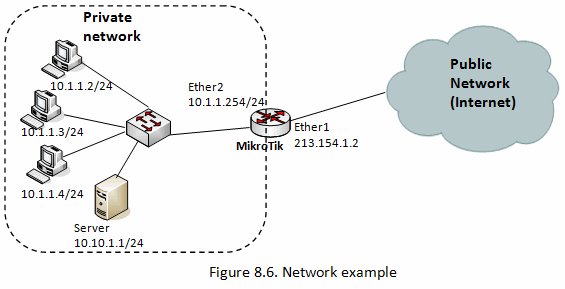
Add a simple queue rule, which will limit the download traffic to 512kbps and upload to 256kbps for the network 10.1.1.0/24, served by the interface Ether2:

[admin@MikroTik] /queue simple> add name=private target=10.1.1.0/24 max-limit=256K/512K \
interface=ether2
 
In this case statement works right also if we indicate only one of parameters: "target=" or "interface=", because both of these define where and for which traffic this queue will be implemented.

Check your configuration :
[admin@Augsha] /queue simple> print 

Flags: X - disabled, I - invalid, D - dynamic 
 0    name="private" target=10.1.1.0/24 dst-address=0.0.0.0/0 
      interface=ether2 parent=none direction=both priority=8 
      queue=default-small/default-small limit-at=0/0 max-limit=256k/512k 
      burst-limit=0/0 burst-threshold=0/0 burst-time=0s/0s 
      total-queue=default-small
 
The max-limit parameter cuts down the maximum available bandwidth. The value max-limit=256k/512k means that clients from private network will get maximum of 512kbps for download and 256kbps for upload. The target allows to define the source IP addresses to which the queue rule will be applied.


Probably, you want to exclude the server from being limited, if so, add a queue for it without any limitation (max-limit=0/0 which means no limitation). Move this rule to the beginning of the list, because items in /queue simple are executed in order one by one if router finds rule that satisfy certain packet next rules aren’t compared:


[admin@MikroTik] /queue simple> add name=server target=10.1.1.1/32 max-limit=0/0 \
interface=ether2


Friday, January 5, 2018

Set Interface VLAN sebagai mode TRUNK Mikrotik

Cara set interface vlan dan kemudian allow vlan ke interface tertentu yang kemudian menjadi mode trunk di interface tsb :
misal kita set vlan DCN dengan vlan id 1130 dan vlan service dengan vlan id 56
1.Via Winbox
set vlan DCN/NMS :

Set Vlan Service :


Ket:
4. penamaan VLAN 
5. set vLAN ID
6. Port yang akan di jadikan mode trunk / di allow vlan tsb
hasilnya :
Pada tab VLAN muncul info VLAN-DCN dan VLAN-SERVICE
dan pada Tab Interface, ether1 di bawahnya muncul vlan yang telah dibuat karena di awal di set vlan tsb dipasang pada ether1

konfig seperti ini menjadikan interface ether1 sebagai mode trunk dengan allow vlan 1330 nama VLAN-DCN dan allow vlan 56 dengan nama VLAN-SERVICE.
2. Via CLI
set VLAN DCN :
[admin@MikroTik] > interface vlan add vlan-id=1130 name=VLAN-DCN disabled=no interface=ether1

Set VLAN Service :
[admin@MikroTik] > interface vlan add vlan-id=56 name=VLAN-SERVICE disabled=no interface=ether1
Check :
[admin@MikroTik] > interface vlan print
Flags: X – disabled, R – running, S – slave
# NAME MTU ARP VLAN-ID INTERFACE
0 R VLAN-DCN 1500 enabled 1130 ether1
1 R VLAN-SERVICE 1500 enabled 56 ether1
 

Saturday, December 30, 2017

Cara Akses Mikrotik

Cara mengakses ke perangkat Mikrotik :

1. Via Winbox


Pasang Kabel UTP LAN dari notebook ke port UTP RJ45 di Mikrotik bebas port. Lalu buka applikasi Winbox di Notebook :


Pilih IP Address atau MAC Address perangkatnya lalu Connect